Enable Permissions for Interview Hero
To use all features of the Interview Hero Mac app, you need to enable certain permissions in your macOS settings. Follow the steps below:
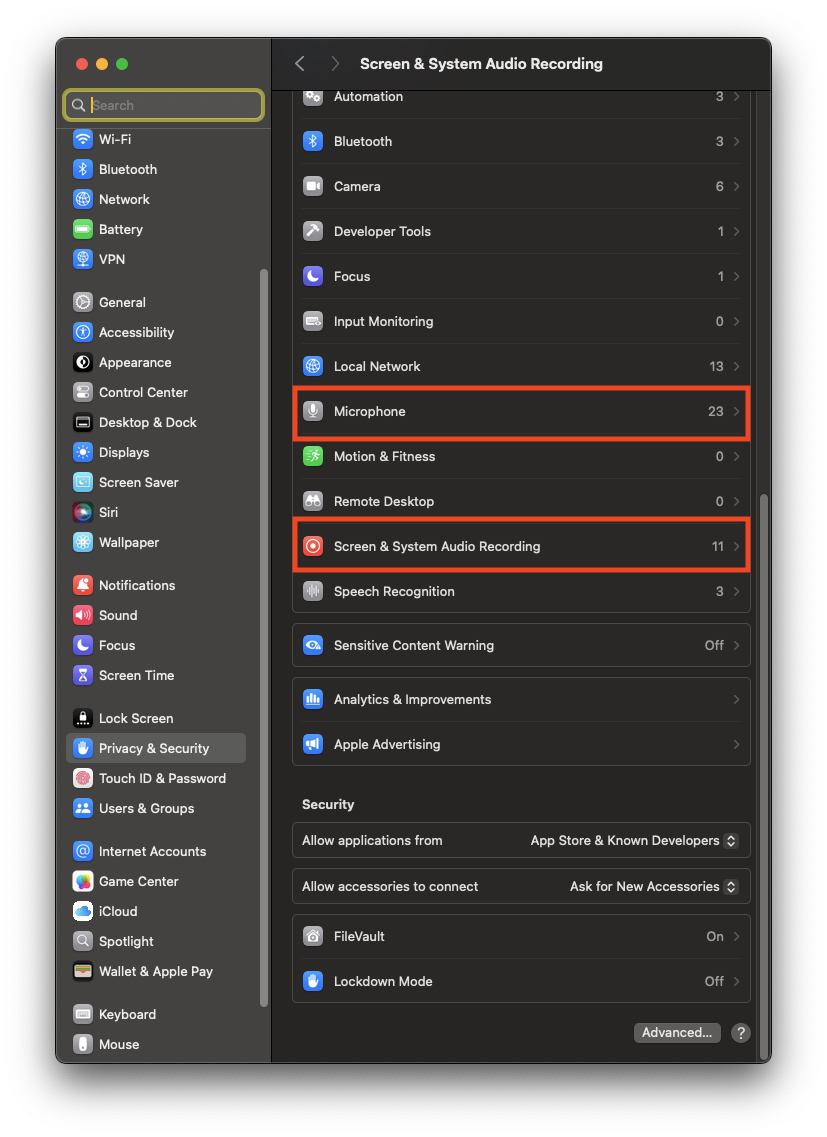
Step 1: Open Privacy & Security
Go to System Preferences and select Privacy & Security.
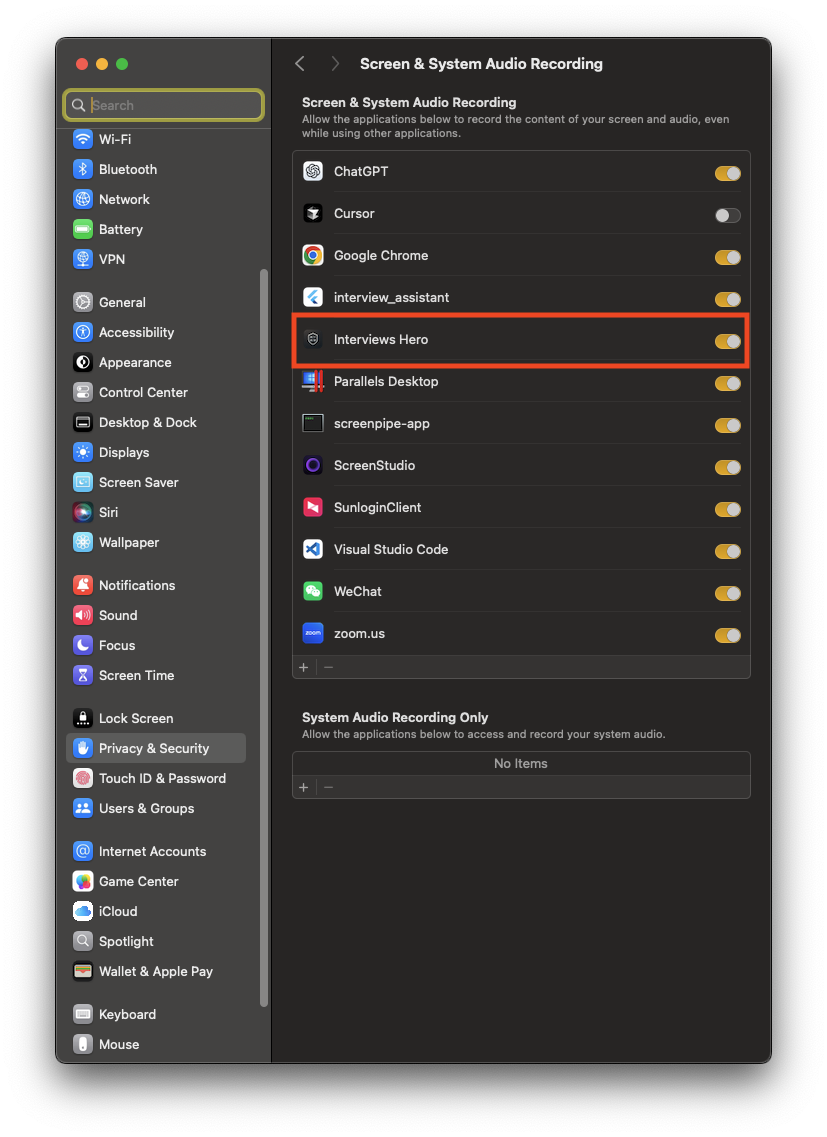
Step 2: Enable Screen Recording
Next, select Screen Recording and check Interview Hero to allow screen sharing features.
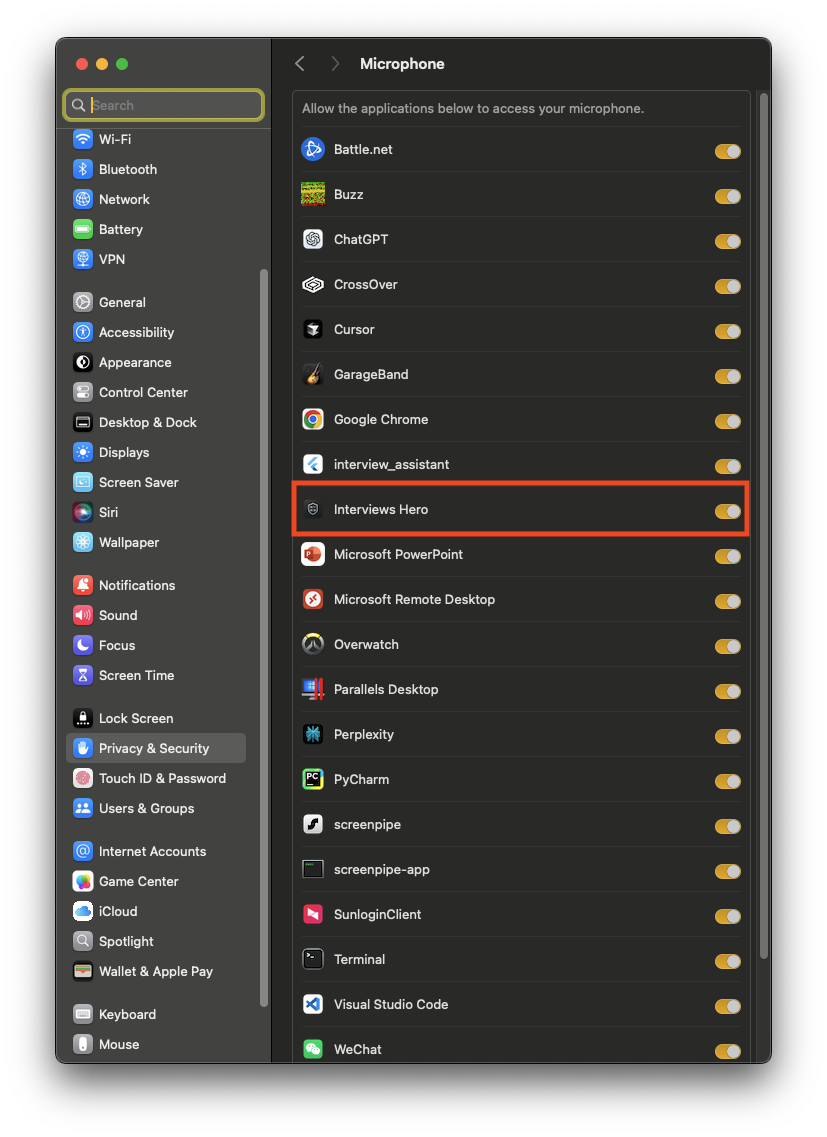
Step 3: Enable Microphone Access
In the Privacy tab, select Microphone and ensure that Interview Hero is checked.
Once these permissions are enabled, you can fully utilize all features of Interview Hero.